
Your Android phone. Your dash cam.
Record the drive. Check the recording.
Use your Android phone as a dash cam. Keep the road on video, see recording and storage status, and find the footage you need after the drive.
For Android 8.0 and later. Camera and recording options depend on your device.
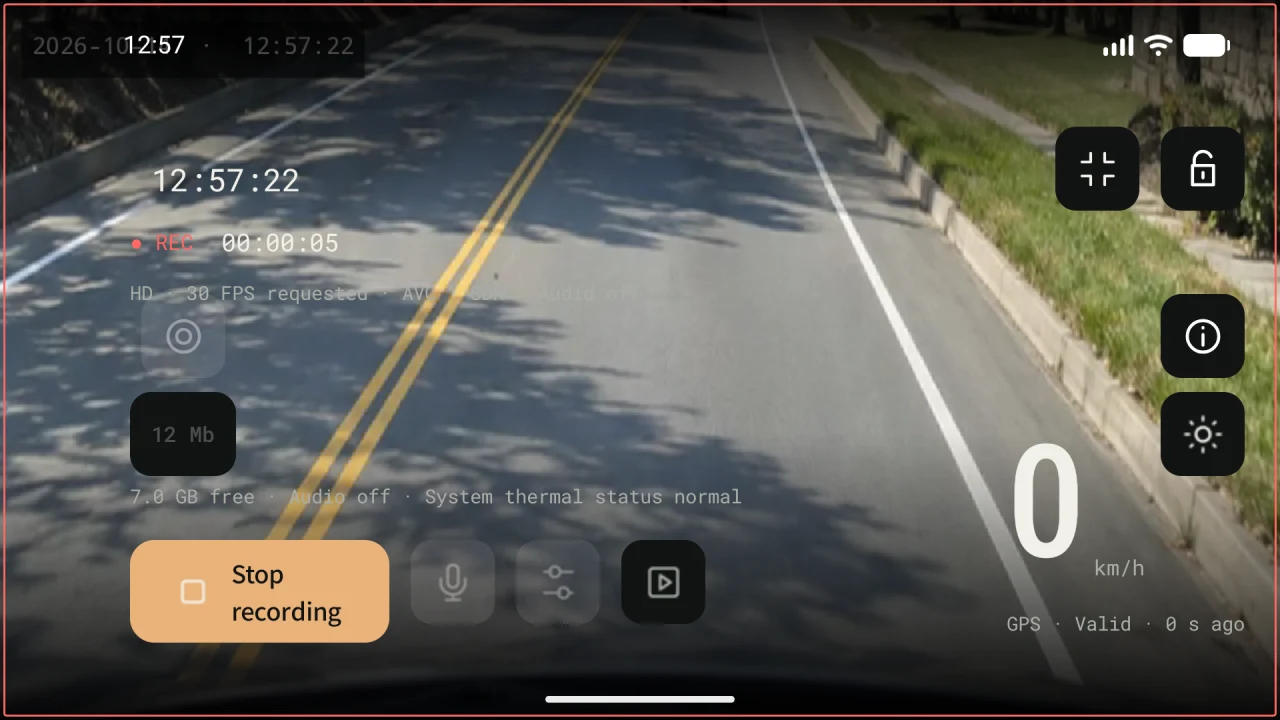
Record. Check. Find.
From recording to the footage you need.
App captures from October 14, 2026, using an emulator and sample content. The road is a generated demo scene; available options and screen details may differ by device and app version.
Check recording and storage.
See the recording time, saved data and available space.
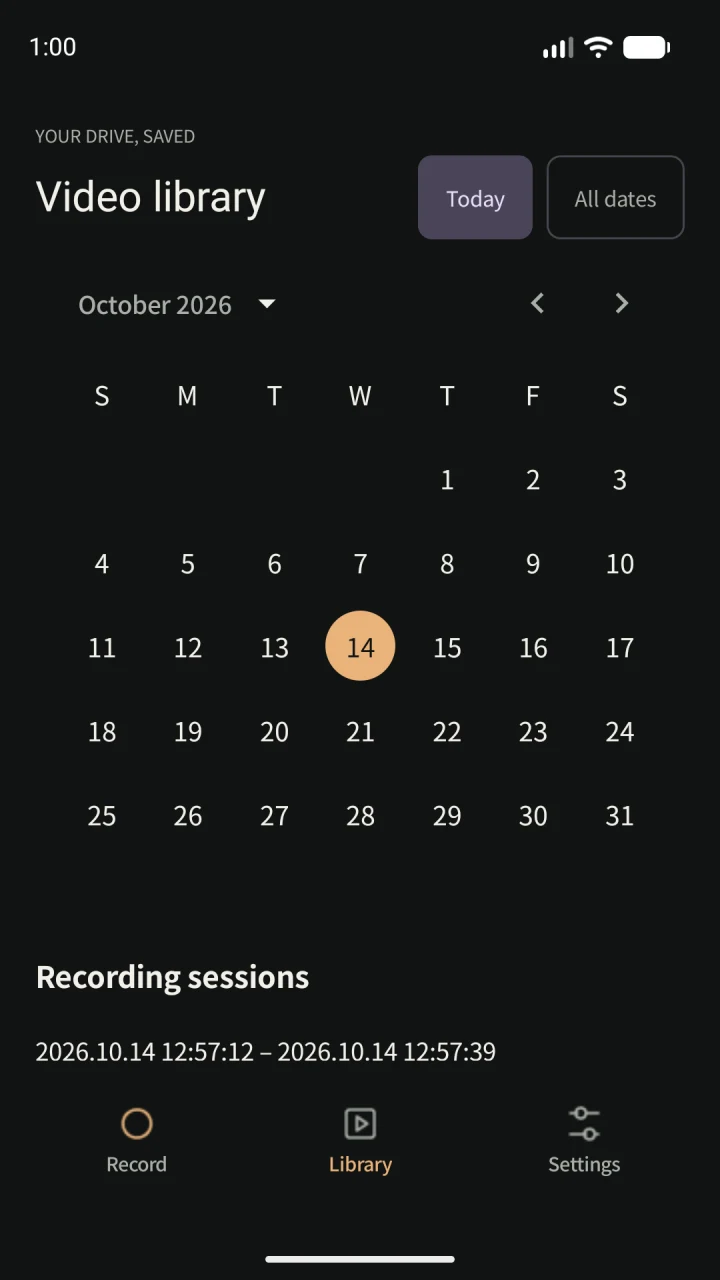
Find a recorded drive.
Choose a date in the calendar, then open a recording session.
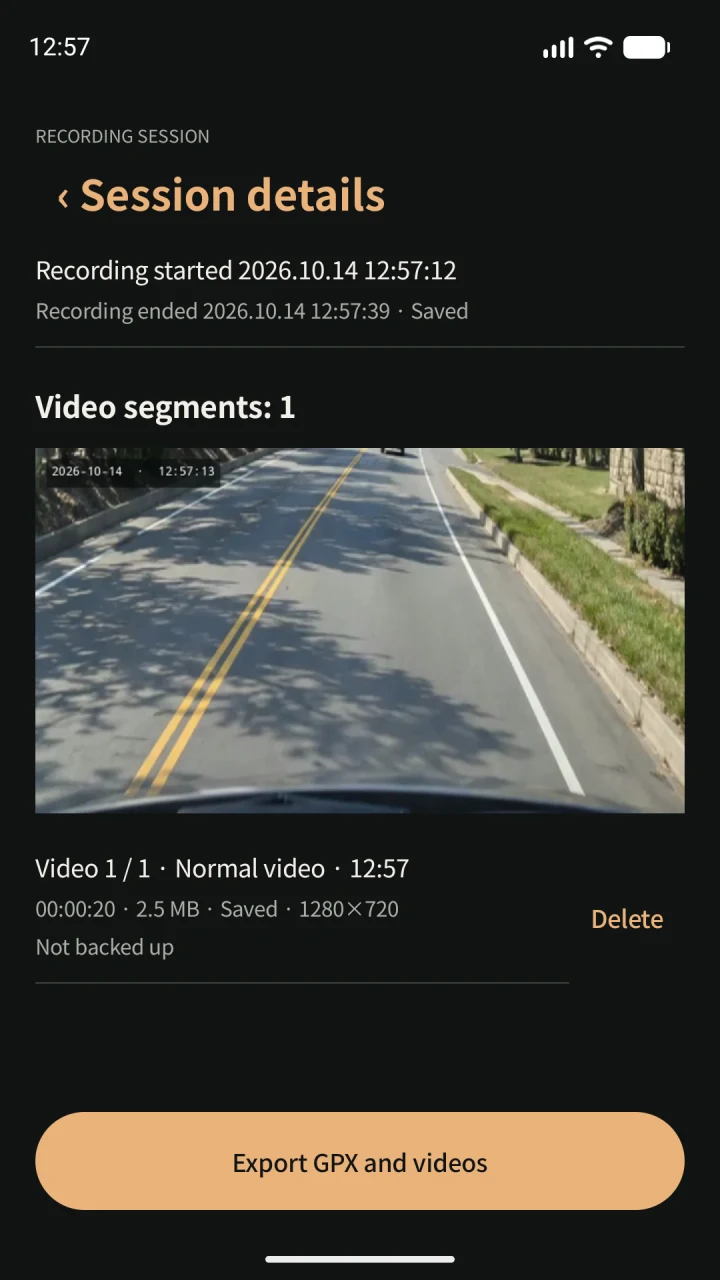
Review the saved footage.
Play the session’s video segments and export the footage you want to keep.
The recording comes first
Set up before you drive.
- Record the drive
- Start with the recording controls. If you enable automation, supported power or vehicle Bluetooth conditions can start capture once the camera is ready. Android restrictions and permissions can require you to open the app yourself.
- Check recording and storage
- See recording time, saved data and available space. Use full controls, a minimal HUD or a power-saving display without changing the recording session.
- Keep the drive in segments
- Choose camera and encoder options supported by your phone. Save video in segments and set a loop-storage limit to remove older eligible recordings when space is needed.
- Find, play and export
- Open the calendar, choose a session and review its video segments. Export the saved footage you want to keep.
- Optional GPS tools
- Show GPS speed when location is available. When location permission is granted, the route is recorded by default and stored only on your device; you can turn it off in Settings. Playback shows the route on an OpenStreetMap map, with a movable, resizable picture-in-picture map in fullscreen, and routes can be exported as GPX.
Optional backup
Keep recordings on your phone. Add backup if you need it.
Core recordings are stored on your phone. Connect Google Drive, WebDAV or SMB if you want video backup, choose upload destinations and separately enable automatic backup of completed videos. Uploaded copies are managed in the connected service.
blackWbox is free and includes Google AdMob ads and, where required, consent controls. Recordings carry a “BlackWbox Free” watermark by default. If you watch a rewarded ad to the end, the watermark is removed, video information can be added and ads are hidden for 24 hours; watching is optional. Camera, microphone, location and connected services have different data needs. It also sends anonymous usage statistics through Google Analytics for Firebase (never your video, audio, location or file names); you can turn this off in Settings.
Read the Privacy PolicyA place for your drive on your Android phone.
View on Google PlayMount your phone and finish setup before driving.